Decoding Ceph Storage: How to Read Your ceph df Output

If you are managing a Ceph cluster, running ceph df is likely part of your daily routine. However, the output can be confusing—you see “Raw Used,” “Stored,” and “Max Avail,” and the numbers never seem to add up at first glance.
In this post, we’ll break down how to interpret these metrics using a real-world example from our own infrastructure.
The Big Picture: Raw vs. Real Data
The most important thing to understand is that Ceph uses redundancy (replication or erasure coding). Because of this, 1 TiB of your files will always take up more than 1 TiB of disk space.
The Raw Storage Layer
At the top of the output, you see the RAW STORAGE section. This is the total physical capacity of every disk (OSD) in your cluster.
- SIZE: The total raw space of the hardware.
- RAW USED: How much physical space is gone. This includes your data, its replicas (backups), and system overhead.
- %RAW USED: The most critical number for cluster health. Once this hits 85%, Ceph will start throwing warnings.
The Pool Layer (The “Real” Data)
The POOLS section tells you what is actually happening with your data.
- STORED: This is your Real Data Used. It represents the actual size of the files you uploaded before they were replicated.
- USED: This is the Physical Space Used by that specific pool. If this number is roughly 3x the “Stored” number, you are using 3x replication.
- MAX AVAIL: This is your Real Data Capacity remaining. It is a smart estimate of how much more unique data you can fit into that pool before the disks are full.
Case Study: Analyzing a Real Cluster
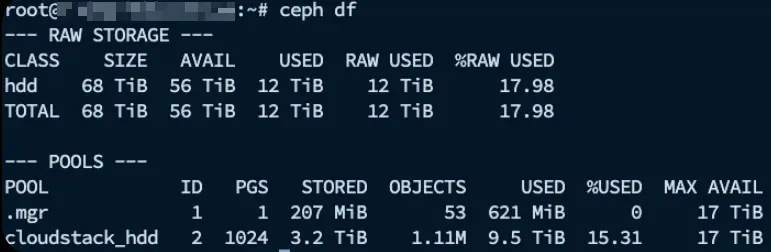
Let’s look at the metrics from one of our active nodes: Metric Value What it means Real Data Used (Stored) ~49 TiB The actual size of our unique files. Physical Used (Raw) 146 TiB The total disk space consumed by those files + replicas. Usable Capacity (Max Avail) ~39 TiB How much more unique data we can safely upload. Usage Percentage ~55% Our cluster is currently about half full.
Pro-Tips for Monitoring
- Don’t just watch the TOTAL: Always check individual pool percentages. One pool might be empty while another is dangerously full.
- Watch the Replication Factor: If your STORED is 10TB and USED is 30TB, you are paying a 3:1 “storage tax” for high availability.
- Trust MAX AVAIL: This is the most honest number for “How much space do I have left?” as it already accounts for your replication settings.